How to Play Clash of Clans MOD APK on PC
Clash of Clans is one of the best strategy games by Supercell, and now we can play it on PC too via Google Play Games. But Google Play Games only supports official games available on the Play Store. Then what about Clash of Clans MOD APK? Can we play it on PC? The answer is Yes. We can play COC MOD APK too on PC using an Android Emulator like BlueStacks, NoxPlayer, LDPlayer, etc. In this post, we will guide you through all the steps with screenshots. So, let’s get started.
Why COC MOD on PC?
At some point, we all thought of playing the COC on the PC. Why? Because of a larger screen. It’d be fun to play the game on a bigger screen. We can chat quickly, have a better view of the base without zooming in or out, and deploy troops & spells with better accuracy & speed. And when we work on a PC, we can quickly check the game for collecting resources or donations, eliminating the need to use our phone. With multiple instances, we can play multiple COC accounts simultaneously. There are so many such reasons to play COC MOD on a PC. Therefore, we are here with the guide.
Step-by-Step Guide to Play COC MOD APK on PC
To play COC MOD on the PC, we will need an Android Emulator because Windows can’t run an APK file. The Android Emulator, like BlueStacks, creates a virtual Android environment where we will install & run the game. Below are the steps to download & install an Android emulator, and then how to install the APK on the emulator. Each step has a screenshot attached so you can easily install & play game on your PC.
Step 1: Download & Install BlueStacks on Your PC
- First, you will need an Android Emulator to install and use Android applications on the PC. So, download BlueStacks Installer from their official BlueStacks website.
- Now, open the Installer. If you want to install BlueStacks elsewhere other than the C drive, then change the installation path. Otherwise, go to the next step.

- Tap the “Agree and Install” button. Now it will start downloading BlueStacks on your PC. It’s nearly 620MB. Let it complete.

- Once the downloading is completed, it will automatically check the PC requirements, extract the downloaded files, install the BlueStacks engine, and complete all installation steps. You don’t need to do anything here.
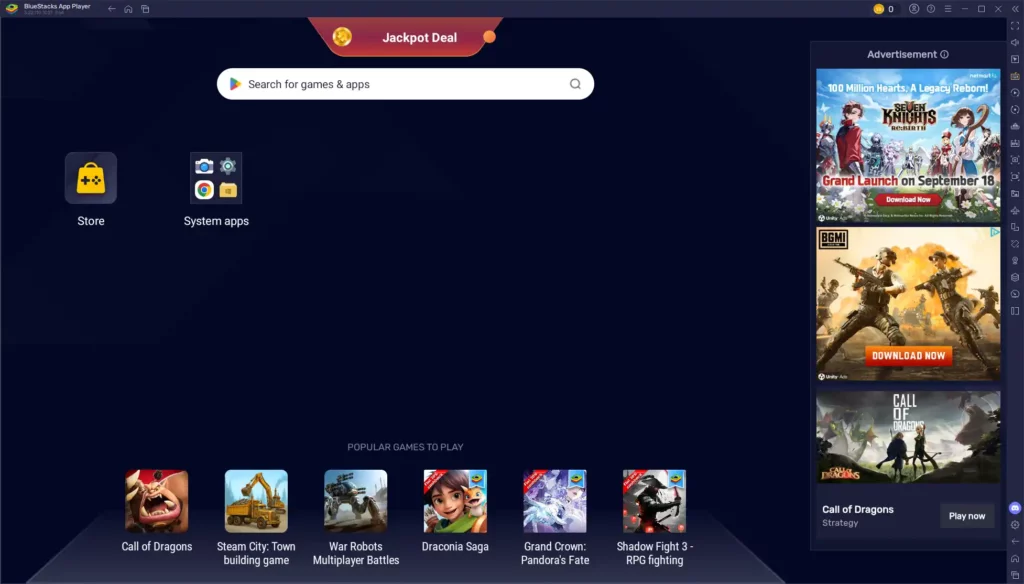
- After the installation is complete, BlueStacks will automatically launch as shown in the following screenshot.
Step 2: Download the APK File on Your PC
- Now that BlueStacks is installed on the PC, you will need the Clash of Clans MOD APK file on your PC.
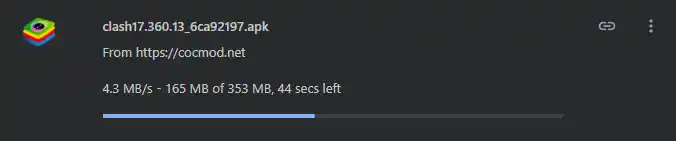
- Download the APK file on the PC from a trusted source. You can also copy & paste the APK file to your PC if you have it on your phone.
Step 3: Install the APK File via BlueStacks
Here, we have three methods to install the APK file via BlueStacks on the PC, which are as follows:
- Method 1: Simply double-click the APK: Go to the folder where the Clash of Clans MOD APK file is stored, and then double-click on it. It will be installed in BlueStacks.
- Method 2: Install APK Option in Toolbar: Launch BlueStacks, then click on the “Install APK” option in the toolbar menu shown on the right side. You can also use the shortcut key “Ctrl+Shift+B” to do the same.
- Now the file picker will be opened. Go to the location where the APK is stored. Select the APK and click on the Open button.
- Method 3: Drag & Drop APK in BlueStacks window: Launch BlueStacks. Then click’n hold the APK file to drag and then drop it in the BlueStacks window.
Using any of the above methods will install the Clash of Clans MOD APK on your PC.

Step 4: Done. Open The Game & Play
- Done. The Clash of Clans MOD APK is successfully installed on your PC. Now you can open the game by clicking on its app icon in BlueStacks or double-clicking on its shortcut icon on the Desktop.
- When you open the game for the first time, it will not run and show the warning “Sorry, but it seems you are using a potentially unsupported device or emulator. Clash of Clans MOD may not work properly. Continue?”
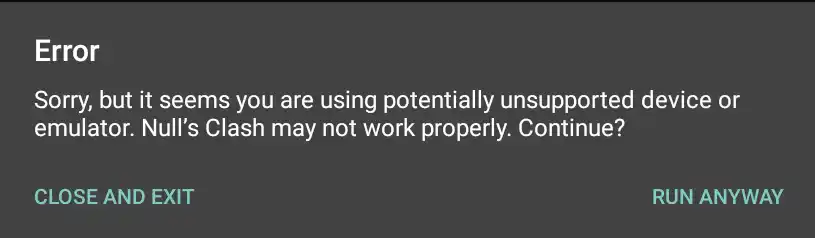
- Click on the “Run Anyway” button.
- You need to reopen the game. Click on its app icon again.
- Done. The game will be launched now.

- You can play the Clash of Clans MOD on your PC with unlimited gems and everything unlocked.
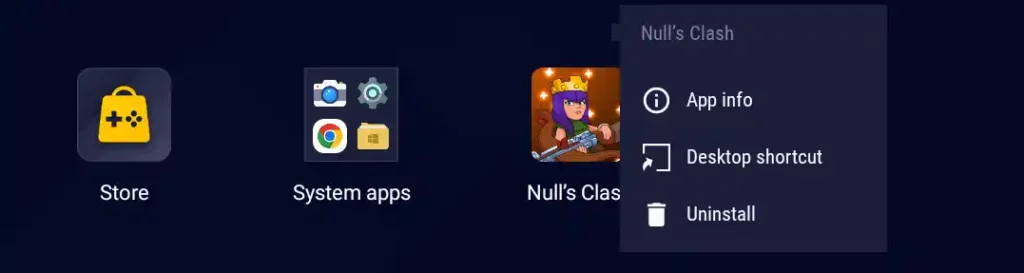
Note: BlueStacks automatically creates a shortcut of the installed application on the Desktop. If it doesn’t, you can left-click & hold it on the App icon in the BlueStacks for more options, then click on the “Desktop Shortcut”
FAQ
You can play the game on a PC by using an Android emulator like BlueStacks, MEmu Play, NoxPlayer, etc. Simply download & install the emulator, then download the APK file on PC, and open it in the emulator. Done.
We recommend using BlueStacks. It’s the best among Android emulators.
Simply double-click the APK file or drag & drop it into the BlueStacks window. It will install the app on your PC.
Yes. Every emulator gives the option to remap the controls. You can set the controls to your liking.
No. If you have connected your COC MOD account with the Nulls Connect, then you can log in with that account in the COC MOD to load the village.
Conclusion
Playing the Clash of Clans MOD on a PC is its own fun. And it’s an experience everyone must try. The larger screen makes it easier to manage the entire base, and the keyboard & mouse give you better control. This guide shows you how to get started using BlueStacks, one of the most reliable & user-friendly Android emulators. By following the steps, you can easily install the COC MOD APK on the PC and enjoy your clash on a larger display.